
Maybe it is a birthday message from Grandma, a quick hello, or someone telling you they made it home. The words can be ordinary. It is the voice you want to keep.
You can give that recording a place beside a photograph, their name, and a short note about the moment. This guide walks through saving the voicemail and making that page in Say it Again. The screenshots follow a saved recording named Grandma on an iPhone.
What you will need
- The voicemail you want to keep, with permission to use and share it.
- A photo that belongs with the memory, if you would like one.
- A short title or note: who it is, when they called, or why you saved it.
You will hear the recording and preview the page before paying. The price is shown in the creator, with payment at the end.
1. Save the voicemail to Files
Open the voicemail in the Phone app and play it to check that it is the message you want. Depending on your iPhone layout, look in the Voicemail tab or open Calls and filter for Voicemails.
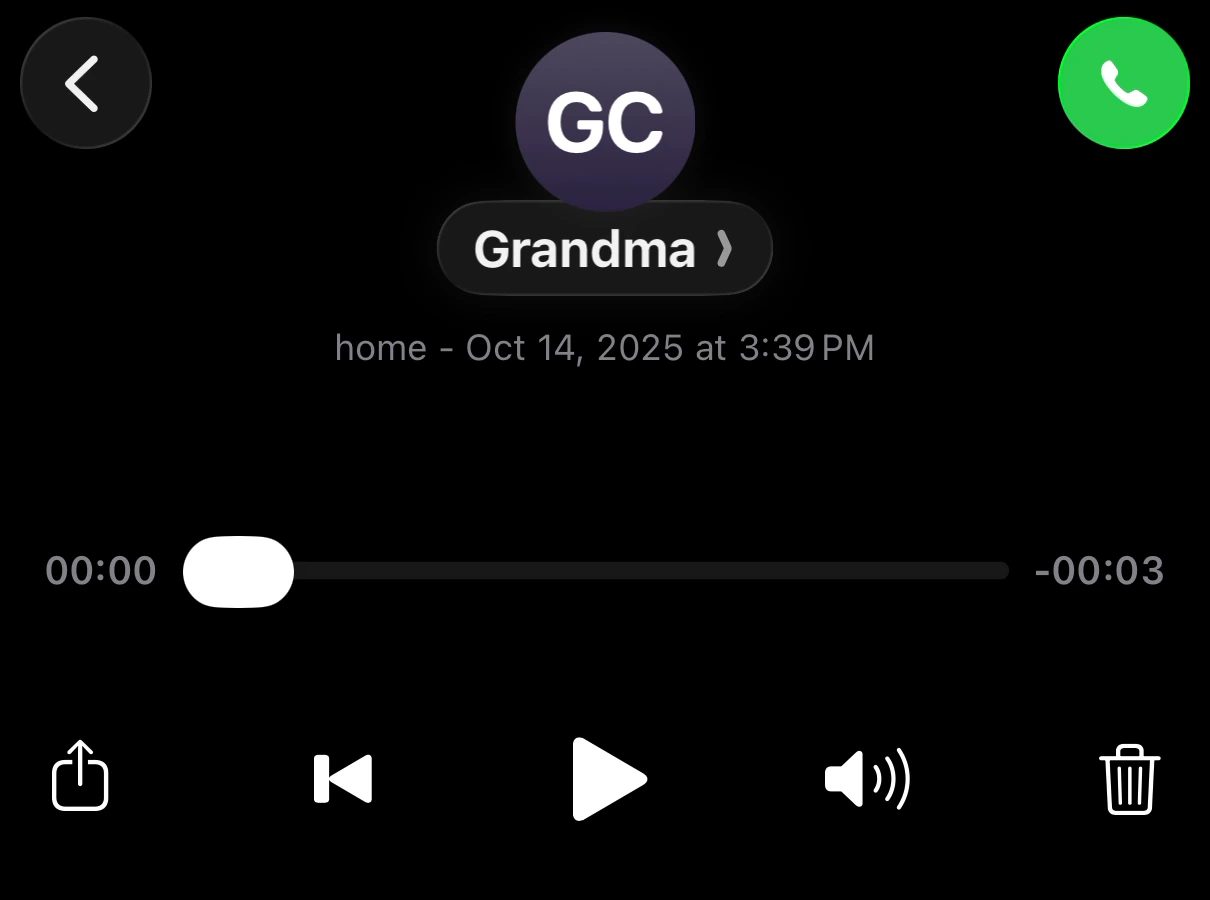
- Open the message and tap the Share button.
- In the share sheet, find Save to Files and tap it.
- Choose a folder you can find again. Give the recording a useful name, such as Grandma — birthday message, and tap Save.
- Open Files, find the saved recording, and play it once to check your copy.
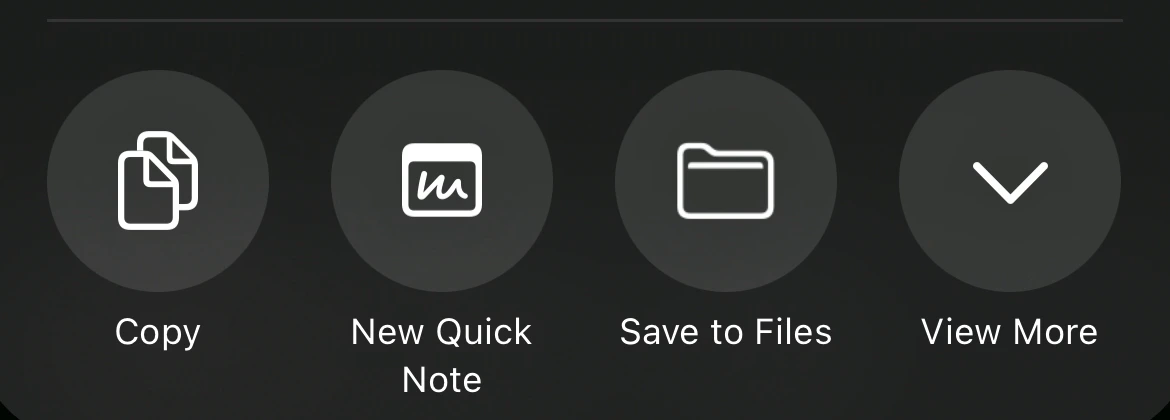
Keep the original voicemail as well as the saved file. You can work with the copy without changing the message in your inbox.
2. Add the saved recording to Say it Again
Open the creator and choose Add a recording you have. On iPhone, choose Choose File if that menu appears, then find the voicemail in Files and select it.
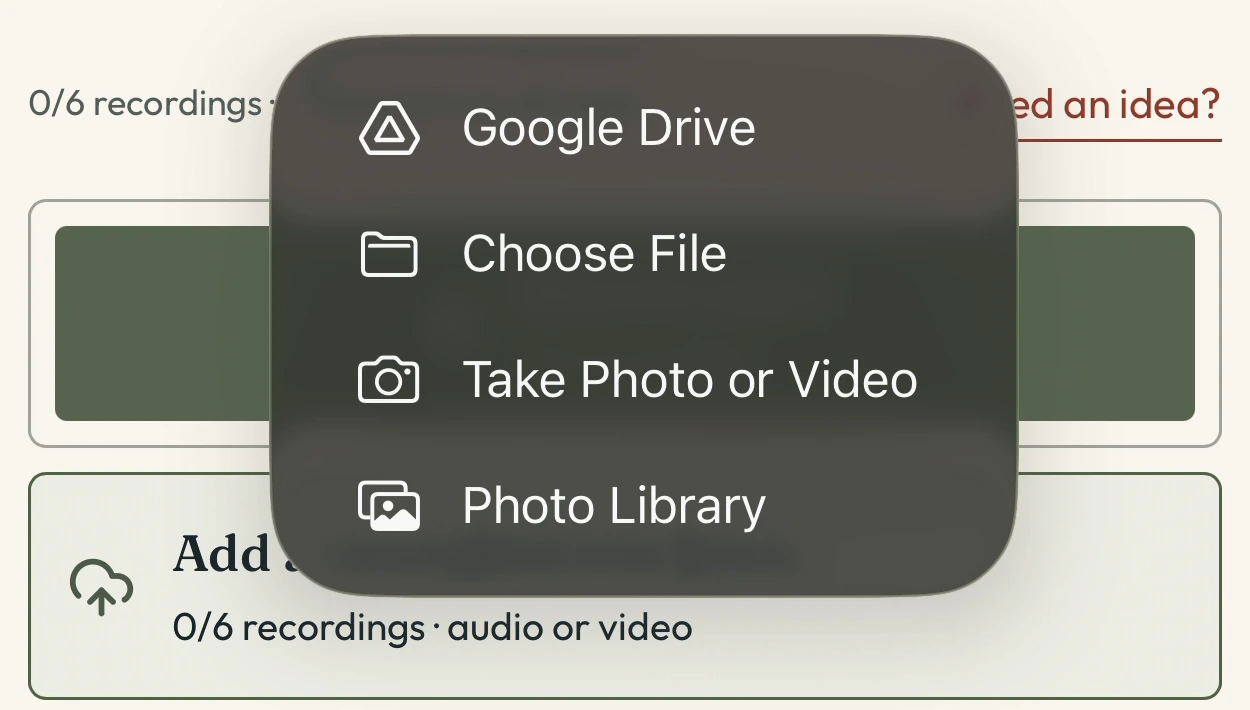
Wait for the recording to finish importing. When it appears in your list of parts, press play and check that you can hear it. You do not need to play the voicemail into your microphone when you already have the saved file.
3. Keep the part that matters
The voicemail can stand on its own. If you want to shorten a pause or leave out a private detail, choose Trim beside the recording, adjust the start and end, then listen again and choose Done.
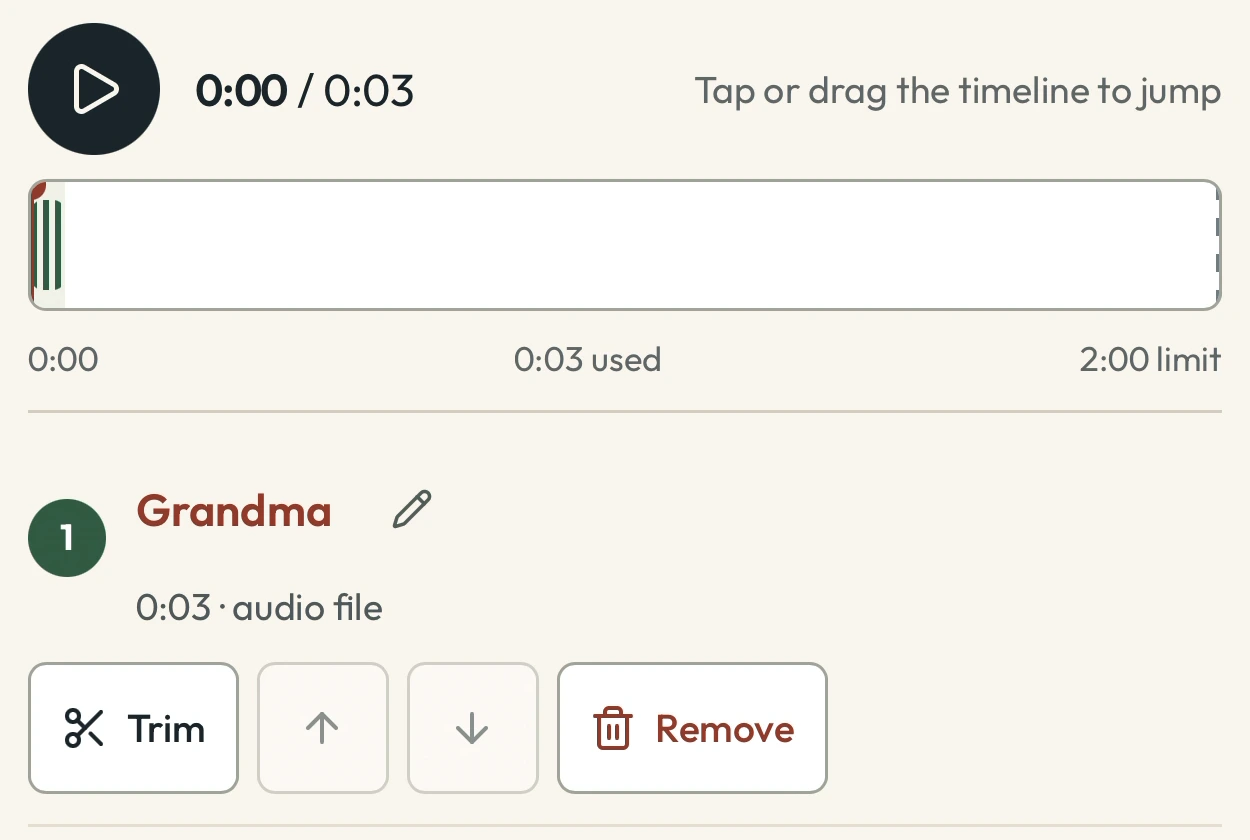
Keep the greeting, laugh, or little pause that makes it sound like them. There is no need to polish away everything familiar. You can also record an introduction or add another recording, but those are optional.
The finished page holds up to two minutes of audio in total. Keep a longer original separately. When the recording sounds right, choose Continue.
4. Add a photo and a personal message
Under Choose a starting look, pick a layout you like. In Make it yours, add a photo, change the title, and write the message you want someone to see when they open the memory.
- A title can be as simple as A birthday call from Grandma.
- Choose a photo of the person, the two of you together, or a place connected with the message.
- For the note, try one sentence: You called before breakfast every year. I am so glad I kept this one.
These are just examples. Use your own details, and leave out a date if you do not know it. The recording is enough to begin with; the photo and note give it context.
5. Listen through and review your keepsake
Choose Review your keepsake. Play the recording from beginning to end, check the photo and spelling, and read the page as the person receiving it will.
Enter the email address for your downloads, review the permissions and terms, then continue to checkout when you are happy with it. Published pages are final, so make any changes before paying.
6. Open the memory, share it, and keep a copy
Once payment and processing are complete, choose Open your voice page. Your voicemail now has its own listening page with the photo and message you chose.
Copy the listening link into a text or email for the people you want to share it with. They can open the page and press play without an app or an account. The page is unlisted, but anyone with the link can open it and pass it on.
Open Downloads and save the recording and offline page, too. Keep them with your original voicemail and family photos, with a second copy somewhere separate. Our download guide walks through checking those files.
What you have made is a place to return to that voice: the message, the person, and a little of the story around it.